Using API v1? See what changes in v2, or the v1 docs
AI in your app
If your app has an AI assistant, @pyas/ai-tools gives it calendar tools. It can see what's on someone's week, find a time when they're free, and book, move or cancel a meeting. Each person's assistant works only with their own calendars, and it asks them before it changes anything.
This page is about the assistant inside your product, used by your customers. To use Pyas yourself, from ChatGPT, Claude or your code editor, see AI tools.
How it works
- Your users connect their Google or Outlook calendars with PyasConnect. Pyas saves each account under your own ID for that user, the
subjectId. - On your server, you give the model Pyas's tools for the signed-in user. The tools have access to that user's accounts only.
- The model reads the calendars when it needs to. When it wants to change something, your app shows the person the change, and the change runs only if they approve it.
You bring the model. Pyas provides the calendar data and the actions, and your API key stays on your server.
Choose your framework
Each guide has the complete code for a chat that books meetings, tested with a real model:
- Vercel AI SDK: a Next.js chat with
useChat - OpenAI: Chat Completions or the Responses API
- Claude API: the Messages API
- LangChain: an agent made with
createAgent
Install the package in your server code:
npm install @pyas/ai-tools
The tools read your key from PYAS_API_KEY.
The tools
| Tool | What it does | Asks the person first |
|---|---|---|
list_accounts | Lists the person's connected calendars | |
account_status | Checks whether a calendar is working | |
list_calendars | Lists the calendars in an account | |
list_events | Lists events between two times | |
get_event | Gets one event with all its details | |
find_meeting_times | Finds times when everyone is free | |
get_free_busy | Gets busy times | |
create_event | Creates an event, with a Meet, Teams or Zoom link if asked | Yes |
update_event | Changes an event, or adds or removes its video meeting | Yes |
delete_event | Deletes an event | Yes |
respond_to_event | Accepts or declines an invitation | Yes |
Events come back with their local times, so the model tells people the time where the event is.
One person's calendars
Pass the signed-in person's ID as subjectId:
pyasTools({ subjectId: user.id })
The tools then have access to that person's accounts only. The model can't choose another person. A request for anyone else's account is refused before it reaches Pyas, with the code TOOL_ACCOUNT_NOT_ALLOWED.
Take the ID from your own sign-in, on your server. Never take it from the request body or from what the model says.
subjectId is required. Without it, or with an empty one (a session with no user), building the tools throws an error instead of quietly giving the model every user's calendars. For an agent that works for you rather than for one of your users, such as an internal assistant, pass allAccounts: true to reach every account in the app. Never use it for a chat your users open.
When a change waits for approval, the tools also return the calendar it lands on (calendar: its email, provider and subjectId). Show it on the approval card, so someone with several calendars sees which one.
Which calendar
People often connect more than one calendar, such as work Google and personal Outlook. When they ask for a new event without saying where, the model asks them which calendar to use.
If your app lets people choose a default calendar, pass it on each request as a hint:
pyasTools({ subjectId: user.id, defaultAccountId: user.defaultCalendarId })
Pyas doesn't store it: keep it with the user in your own database. With it, the model uses that calendar without asking unless the person names another, and it's checked like any other account, so one that isn't the person's is refused. Empty or null means no default.
Changes wait for approval
A tool that changes a calendar doesn't run when the model asks for it. Your app shows the person the change, and they approve or decline it:
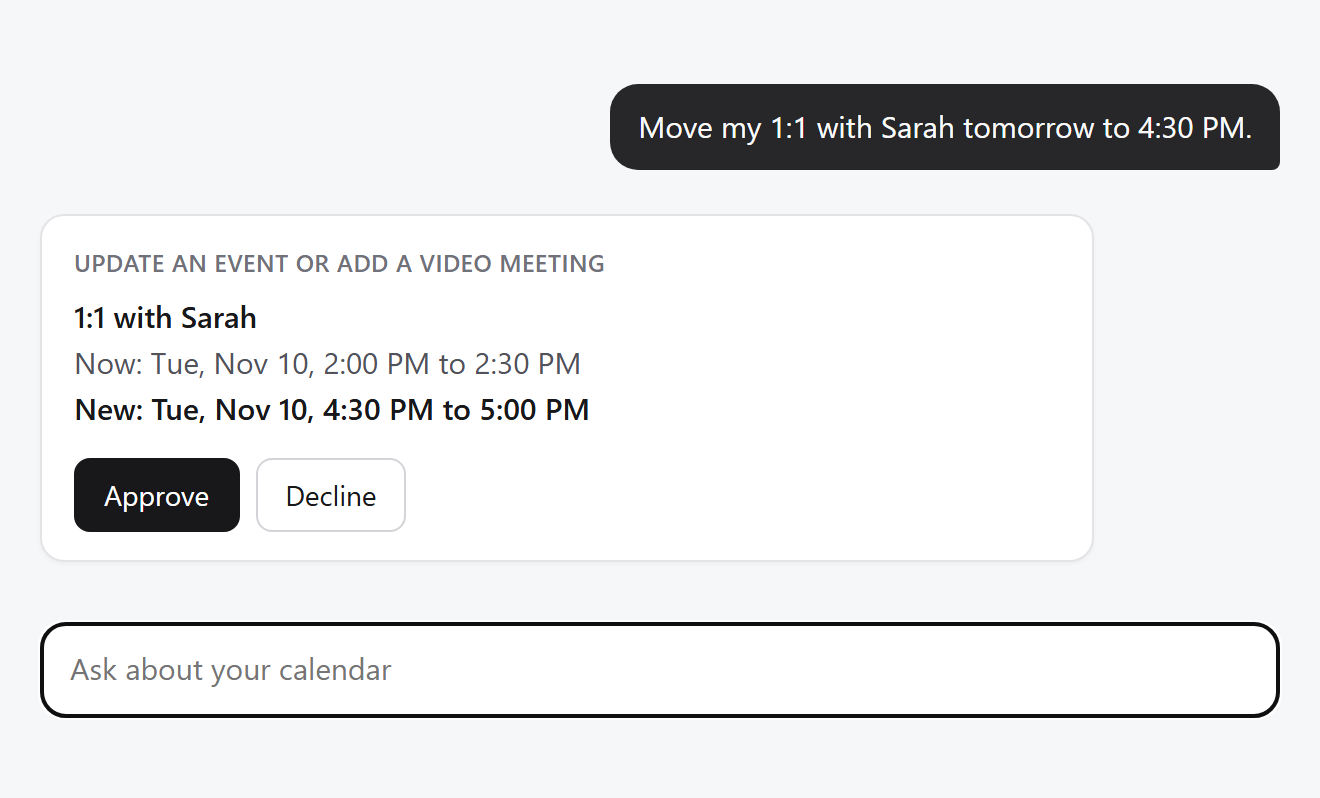
- What the person sees comes from Pyas. For a change to an existing event, you get the event as it is now in Pyas, not as the model describes it. Show it. If text in an invitation tricks the model into picking another event, the person sees which event it really is.
- A change that can never run isn't put to the person. A change to someone else's account, or to an event that doesn't exist, is refused immediately, and the model is told why.
- A declined change is never sent to Pyas. The model is told that the person declined, and it leaves the calendar as it is.
Each guide shows how this works in its framework. If your app already asks the person before a change, turn this off with requireApproval: false.
Offer fewer tools
Give the assistant only what it needs:
pyasTools({ subjectId: user.id, readOnly: true })                   // reads only: nothing can change
pyasTools({ subjectId: user.id, scope: ['events', 'availability'] }) // events and free times only
pyasTools({ subjectId: user.id, scope: ['events:read'] })            // list and get events only
The scopes are accounts, calendars, events and availability, each alone or with :read or :write. read and write alone apply to all four. A scope that doesn't exist throws an error, so a typo never gives the assistant more than you meant.
When a tool fails
A tool never throws an error at the model. It returns the error with its code, a hint and the request's trace ID, so the model can fix its request or tell the person what to do:
{
  "error": {
    "code": "RESOURCE_NOT_FOUND",
    "message": "The calendar or event was not found.",
    "hint": "Check the ID. The item may have been deleted, or it may not be visible to this account.",
    "docs": "https://developer.pyas.io/errors/RESOURCE_NOT_FOUND",
    "traceId": "trc_..."
  }
}
Every request the tools make is on the Logs page in the dashboard, marked By @pyas/ai-tools. To see what a request did, open its trace ID there.
Try it in the sandbox
Start with a test key. A test key works only in your app's sandbox, where sample people have a week of events, and nothing reaches a real calendar.
- Copy a test key from API keys in the dashboard (opens in a new tab), and set it as
PYAS_API_KEYon your server. - Use the sandbox person Avery Brooks as the signed-in user:
subjectId: 'sandbox_user_1'. - Ask: "What's on my calendar tomorrow?", then "Book a 30 minute meeting tomorrow afternoon when I'm free."
Go live
- Add PyasConnect to your app, so people can connect their calendars. Save each account under your user's ID as
subjectId. - Pass the signed-in user's ID as
subjectId, in place of the sandbox person. - Create a live key in the dashboard, and set it as
PYAS_API_KEYon your server.
With a live key, the assistant reads and changes real calendars, and every change still waits for the person's approval.