Using API v1? See what changes in v2, or the v1 docs
AI tools
The Pyas MCP server lets an AI tool set up your app and work in its sandbox or on live calendars. You add it to the tool by its address and sign in to Pyas from the tool. There is nothing to install and no key to copy.
The server has two addresses, as a key is a test key or a live key:
| Address | What the tool works on |
|---|---|
https://mcp.pyas.io/sandbox | The app's sandbox: test people, calendars and events |
https://mcp.pyas.io | The live calendars that people connected to the app |
Start with the sandbox. To use both, add each as its own server (see Live calendars).
Add the server
Each tool has its own guide, from adding the server to your first request:
| Where you work | Guide |
|---|---|
| A chat | ChatGPT, Claude |
| Your code editor or terminal | Cursor, VS Code, Claude Code, Codex |
Any other tool that adds an MCP server by its address and signs in with OAuth works the same way: enter https://mcp.pyas.io/sandbox and sign in when it asks.
Sign in
When the tool connects, your browser opens the Pyas dashboard:
- Sign in, or create an account.
- Choose the app the tool works with. A tool works with one app. To use it with another app, disconnect it and connect it again.
- Check what the tool asks for. On the live address, choose whether it may only read live calendars or change them too.
- Select Allow.
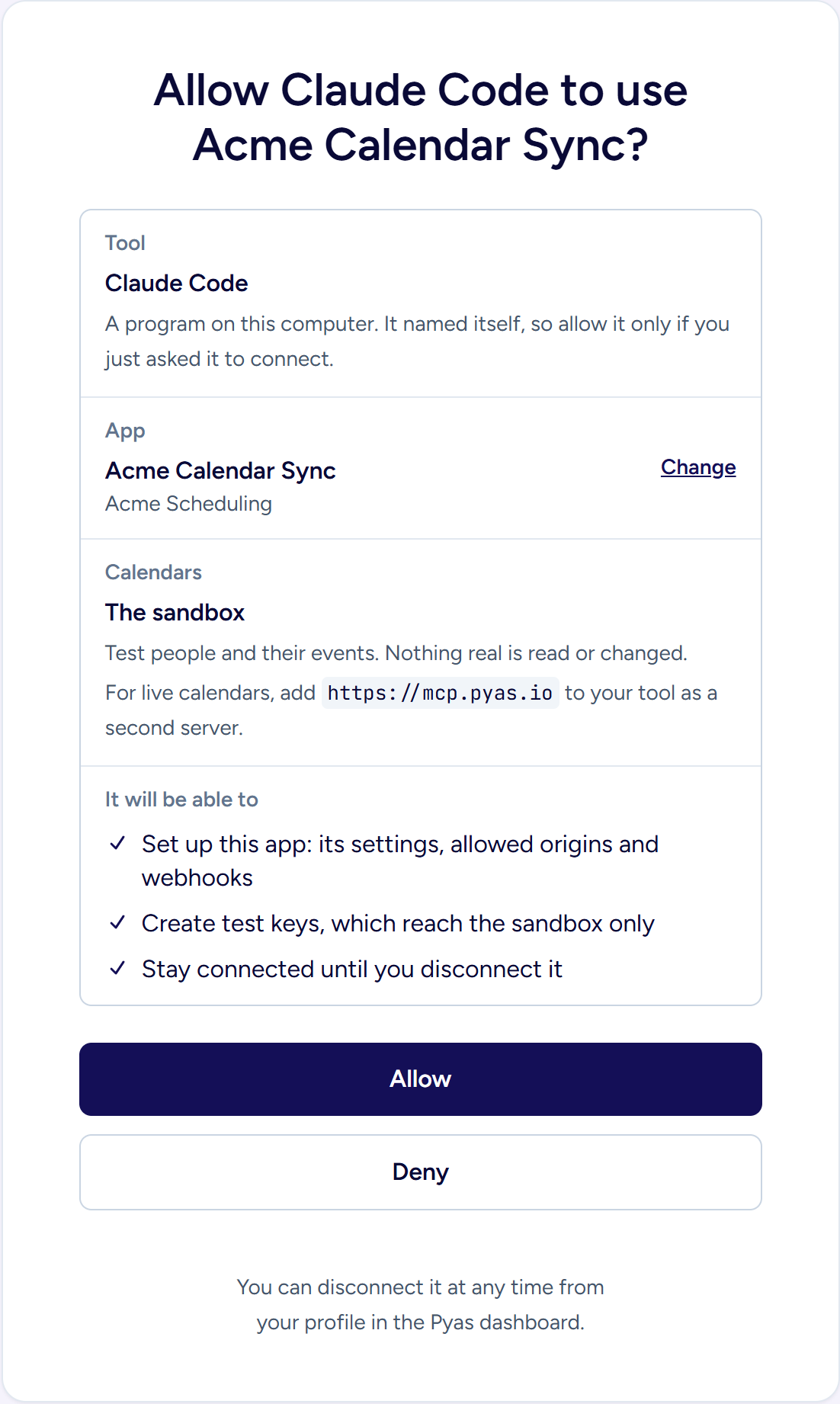
A tool can ask for these permissions:
| Permission | What the tool can do |
|---|---|
| Use this app's sandbox | Read and change the sandbox's test people, calendars and events |
| Set up this app | Change the app's settings and allowed origins, and add sandbox webhooks |
| Create test keys | Create test keys, which work only in the sandbox |
| Read live calendars | Read the accounts and events that people connected to the app |
| Change live calendars | Create, update and delete events and reply to invitations, each change confirmed by you |
| Stay connected | Stay connected until you disconnect it |
What the tool can do
On the sandbox address, the tool has the calendar tools of @pyas/mcp: list accounts and events, find a time when everyone is free, and create, update and delete events. It also has the tools for debugging your integration, such as explain_error and get_request. Every request works only in the sandbox and doesn't affect real calendars.
With the setup permissions, the tool can set up the app:
| Tool | What it does |
|---|---|
setup_status | Shows what is done in the app's setup, what is left, and the next step |
update_app | Adds the address your app runs at, such as a preview URL, to its allowed origins |
get_test_key | Creates a test key, and tells you where to store it as a secret |
create_webhook | Adds a sandbox webhook endpoint, returns its signing secret and sends a test delivery |
create_app | Creates another app |
go_live_checklist | Lists what is left before the app works with real calendars |
get_recipe | Returns the code for a task on your platform, with where each file goes and the secret to set |
Some things are always done by you, in the dashboard: choosing a plan, creating live keys and adding live webhooks. The tool gives you the link when it gets there.
Event titles, descriptions and attendees are written by other people. The server marks that text as data in every response, so the tool doesn't follow instructions that someone puts in an invitation.
Live calendars
A tool can also work on the live calendars that people connected to your app, for example to find out why a booking didn't show up. Add a second server with the live address:
- Add
https://mcp.pyas.iothe same way as the sandbox, under its own name, such aspyas-liveorPyas live. Each tool's guide shows how. - Sign in. The page asks What may it do with live calendars?:
- Read only: the tool can list accounts and events, but can't change anything, including the app's setup.
- Read and change: the tool can also create, update and delete events and reply to invitations.
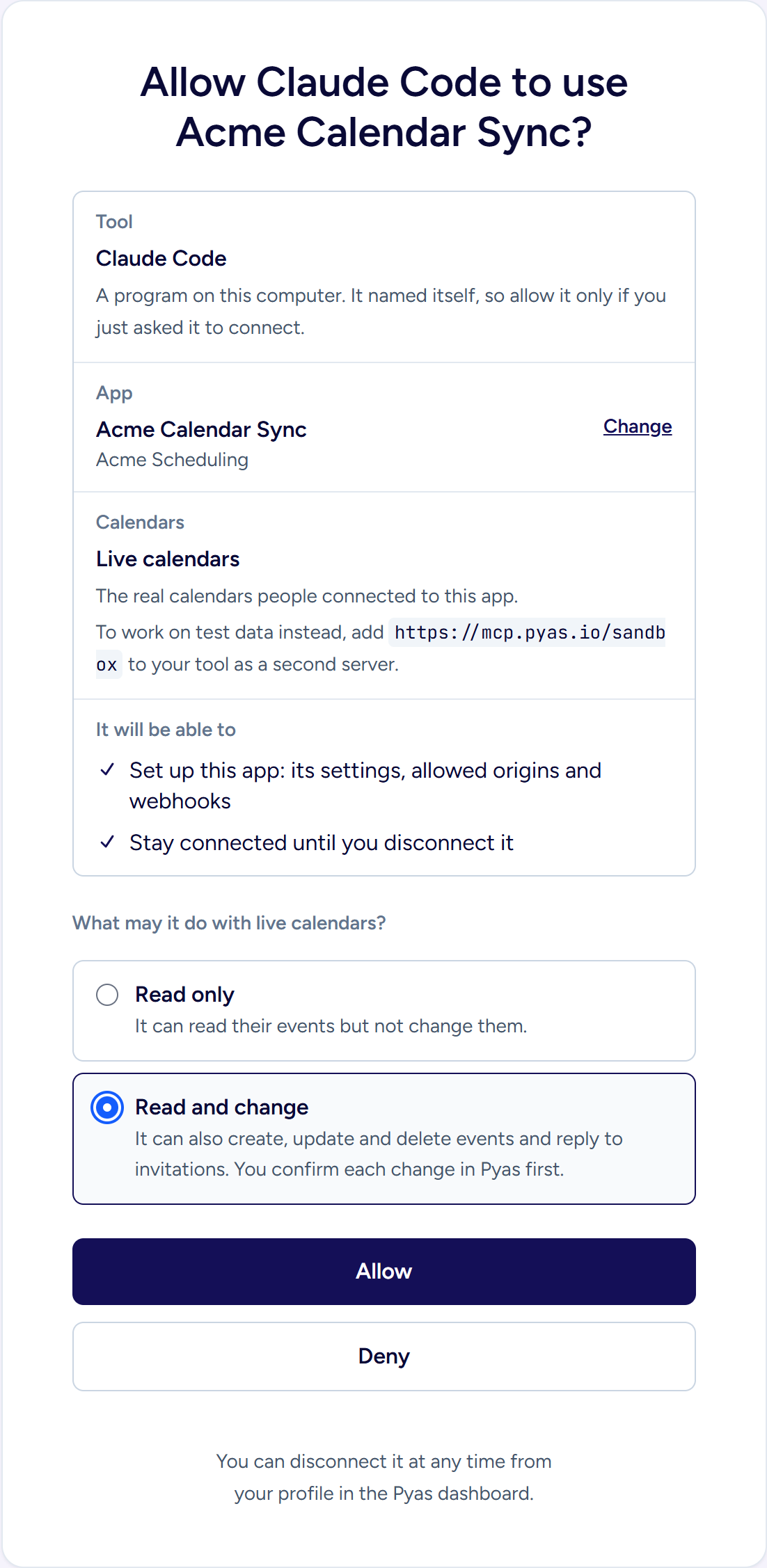
On the live address, you choose what the tool may do with live calendars. Allow stays off until you choose.
Each address works on its own calendars: the sandbox address works only in the sandbox, and the live address only on live calendars. The description of every tool starts with Sandbox: or Live calendars:, so the AI can tell the two servers apart, and it asks you when it isn't clear which one you mean.
While you work in the sandbox, turn the live server off, so the tool can't mix up the two. Each tool's guide shows how.
Requests on live calendars count toward your plan's monthly requests, as a live key's do. Changing live calendars needs the owner, admin or developer role in the organization.
Confirm each change
Before a tool changes a live calendar, you confirm the change in Pyas:
- The tool asks to make the change and gives you a link. Some tools open the page for you.
- The page shows the app, the calendar and what would change. Select Confirm or Decline.
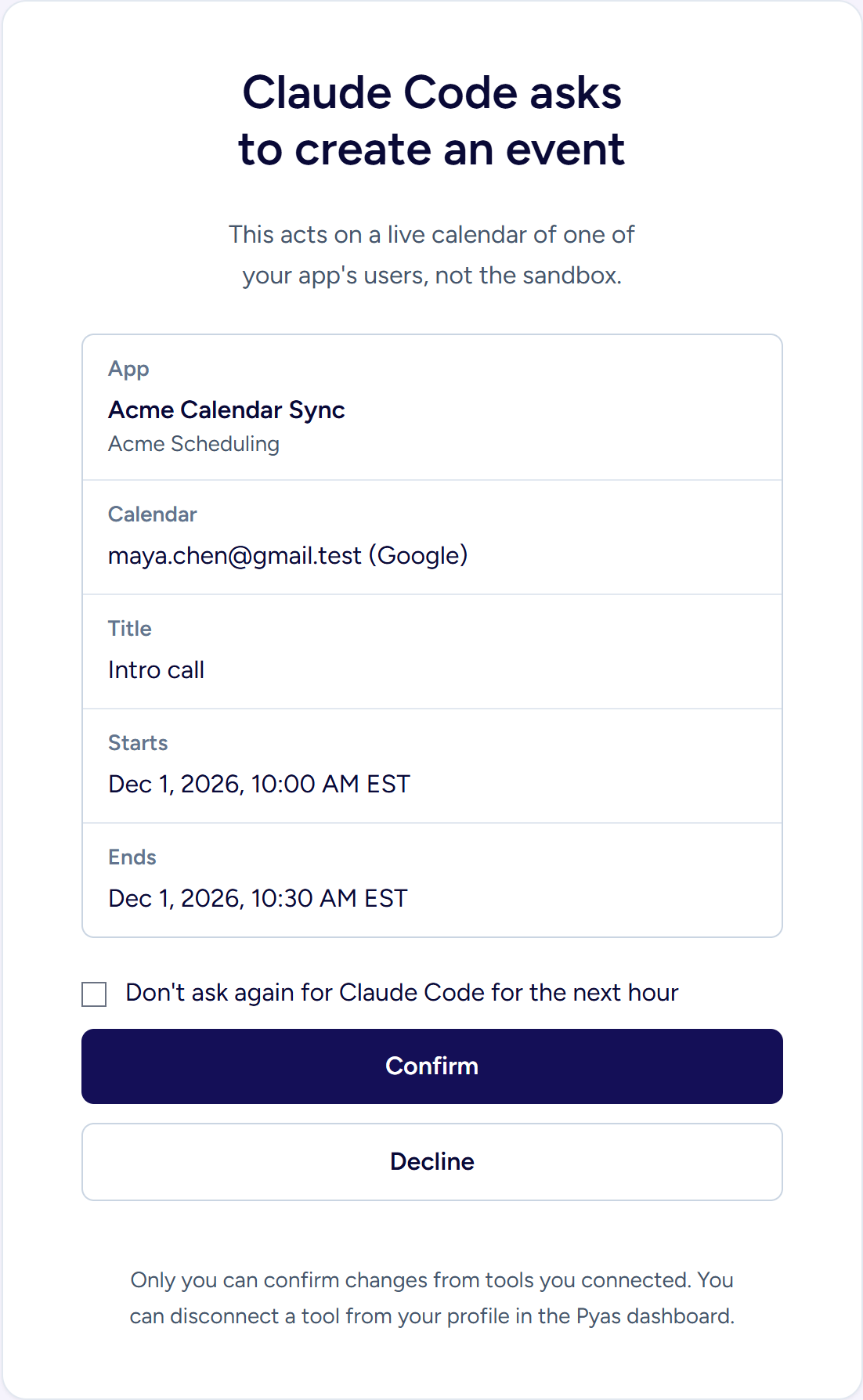
A change waiting for you. It shows the calendar it acts on and exactly what would change. - Go back to the tool and let it carry on. It makes the change when it tries again.
Only the person who connected the tool can confirm its changes. A link works for 15 minutes.
Changes to the app are confirmed the same way. On the live address, you confirm every change to the app. On either address, you confirm each new allowed origin, because live calendars use the same list. Don't ask again doesn't cover changes to the app.
To stop being asked for a while, select Don't ask again for this tool for the next hour before you confirm. Connected tools on your profile shows when the hour ends, and Ask each time ends it early.
Disconnect a tool
Your connected tools are listed on your profile in the dashboard, under Connected tools, with when each was last used. Select Disconnect to stop a tool immediately.
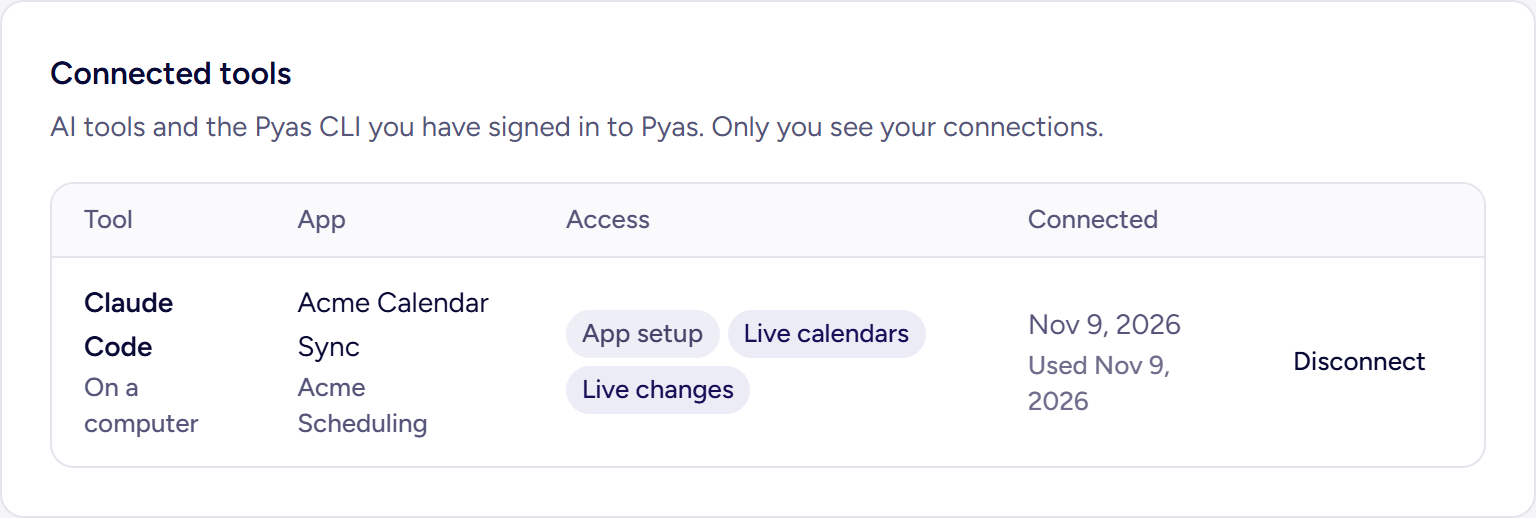
Test keys and sandbox webhooks that the tool made keep working, so anything it built keeps running. You can revoke them on the app's pages. To use it again, connect it again from the tool.
The Logs page in the dashboard shows which tool made each request, such as "By Claude (AI tool)".
The setup endpoints
The MCP server and the CLI's pyas login set up apps through these endpoints. You can call them yourself with a pyas login token, or with the SDK's pyas.manage. A connected tool's own token doesn't work here: it works only through the MCP server. Once an app has connected calendars, change its allowed origins in the dashboard, not with a pyas login token.
Every path starts with /v2/manage/apps:
| Method | Path | What it does |
|---|---|---|
GET | Lists the apps you can set up | |
POST | Creates an app | |
GET | /{appId} | Returns the app, its setup checklist and the next step |
PATCH | /{appId} | Updates the app's name, description, website and allowed origins |
GET | /{appId}/webhooks | Lists the app's sandbox webhook endpoints |
POST | /{appId}/webhooks | Adds a sandbox webhook endpoint and returns its signing secret |
POST | /{appId}/webhooks/{webhookId}/test | Sends a test delivery |
GET | /{appId}/keys | Lists the app's keys, without their values |
POST | /{appId}/keys/test | Creates a test key and returns its value |
To create or change anything, send a person's access token: Authorization: Bearer <token>. pyas login gets one for you. An API key in x-api-key can only read its own app's setup.
npx @pyas/cli login
npx @pyas/cli apps show <appId>
For example, the setup of an app:
GET /v2/manage/apps/5c1e9a47-2d3b-4f86-a0e9-7b4c2d18f365
Authorization: Bearer <token>
{
  "success": true,
  "data": {
    "appId": "5c1e9a47-2d3b-4f86-a0e9-7b4c2d18f365",
    "orgId": "a3d97f2c-6e41-4b8a-9c05-1f7e2b4d8a60",
    "name": "Booking page",
    "description": "",
    "websiteUrl": "",
    "allowedOrigins": ["https://booking.example.com"],
    "signIn": { "google": "pyas", "microsoft": "pyas", "zoom": "pyas" },
    "setup": {
      "steps": [
        { "id": "allowed_origins", "done": true, "text": "Add the address your app runs at (its preview or production URL) to the allowed origins, so PyasConnect opens there." },
        { "id": "first_call", "done": false, "text": "Make a first request against the sandbox with a test key." },
        { "id": "test_key", "done": false, "text": "Create a test key and store it as a secret in your project." },
        { "id": "webhook", "done": false, "text": "Add a webhook endpoint, so your app hears when calendars change." },
        { "id": "own_calendar", "done": false, "text": "Connect your own calendar in Live from the dashboard, and call the API on it." },
        { "id": "signin", "done": true, "text": "Google, Microsoft and Zoom use Pyas Auth." },
        { "id": "live", "done": false, "text": "Create a live key in the dashboard and store it as a secret where your server code runs, then connect a real calendar account." }
      ],
      "nextStep": "Make a first request against the sandbox with a test key."
    },
    "dashboardUrl": "https://app.pyas.io/org/apps/5c1e9a47-2d3b-4f86-a0e9-7b4c2d18f365"
  },
  "provider": null,
  "traceId": "trc_7f3a9c2e1b4d6a8f0c5e2b1d",
  "meta": {}
}