Using API v1? See what changes in v2, or the v1 docs
Vercel AI SDK
This guide builds a chat in a Next.js app where your users ask about their calendars and book meetings. The assistant uses Pyas's tools for the signed-in user only, and each change waits for them to approve it.
You need the AI SDK 6 or later. The code here was tested with Next.js 16, the AI SDK 7 and OpenAI's gpt-5.5. Any model that calls tools works. See AI in your app for how the tools work.
To start from a working app with the code on this page, create it with the Pyas CLI:
npx @pyas/cli init --template nextjs-ai-chat my-chat
Set OPENAI_API_KEY in its .env.local, then run npm install and npm run dev. If you're signed in with pyas login, your test key is already there.
Install
npm install @pyas/ai-tools ai @ai-sdk/react @ai-sdk/openai
Set these on your server:
PYAS_API_KEY=pyas_sk_test_...   # a test key from API keys in the Pyas dashboard
OPENAI_API_KEY=sk-...
The examples use a currentUserId function for your sign-in. It returns the signed-in person's ID in your app, the same ID you saved as subjectId when they connected their calendar. To try the guide in the sandbox, have it return 'sandbox_user_1', the sandbox person Avery Brooks.
The chat route
app/api/chat/route.ts
import { openai } from '@ai-sdk/openai'
import { convertToModelMessages, stepCountIs, streamText, type UIMessage } from 'ai'
import { pyasTools } from '@pyas/ai-tools/vercel'
import { currentUserId } from '@/lib/user'

export async function POST(req: Request) {
    const userId = await currentUserId(req)
    if (!userId) return new Response('Sign in to use your calendar.', { status: 401 })

    const { messages }: { messages: UIMessage[] } = await req.json()
    // Today's date lets the model work out "tomorrow".
    const today = new Date().toISOString().slice(0, 10)
    const result = streamText({
        model: openai('gpt-5.5'),
        system: `You help the user manage their calendar. Today is ${today}.`,
        messages: await convertToModelMessages(messages),
        tools: pyasTools({ subjectId: userId }),
        stopWhen: stepCountIs(10),
        // With OpenAI: each request carries the model's reasoning, so a chat that goes on after
        // an approval never points at reasoning OpenAI no longer has.
        providerOptions: { openai: { store: false, include: ['reasoning.encrypted_content'] } },
    })
    return result.toUIMessageStreamResponse()
}
pyasTools({ subjectId: userId }) gives the model the tools for this person's calendars only. Each tool that changes a calendar is marked as needing approval, so the AI SDK stops at it and sends the change to the page instead of running it.
With a model from another provider, leave out providerOptions.
The chat page
app/page.tsx
'use client'

import { useChat } from '@ai-sdk/react'
import { lastAssistantMessageIsCompleteWithApprovalResponses } from 'ai'
import { useState } from 'react'
import { Approval } from './approval'

export default function Chat() {
    const [input, setInput] = useState('')
    const { messages, sendMessage, addToolApprovalResponse } = useChat({
        // Once the person has answered every change, the chat carries on by itself.
        sendAutomaticallyWhen: lastAssistantMessageIsCompleteWithApprovalResponses,
    })

    // A declined change never runs. The reason tells the model not to ask for it again.
    function answer(id: string, approved: boolean) {
        const reason = approved ? undefined : "The user declined this change. Leave it as it is, and don't ask again unless they do."
        addToolApprovalResponse({ id, approved, reason })
    }

    function send(event: React.FormEvent) {
        event.preventDefault()
        sendMessage({ text: input })
        setInput('')
    }

    return (
        <main>
            {messages.map((message) => (
                <div key={message.id} className={`message ${message.role}`}>
                    {message.parts.map((part, index) => {
                        if (part.type === 'text') return <div key={index} className="bubble">{part.text}</div>
                        if (part.type.startsWith('tool-') && 'state' in part && part.state === 'approval-requested') {
                            return <Approval key={index} tool={part.type.slice(5)} input={part.input as Record<string, unknown>} onAnswer={(approved) => answer(part.approval.id, approved)} />
                        }
                        return null
                    })}
                </div>
            ))}
            <form onSubmit={send}>
                <input value={input} onChange={(event) => setInput(event.target.value)} placeholder="Ask about your calendar" />
            </form>
        </main>
    )
}
A tool part in the approval-requested state is a change waiting for the person. When they choose, addToolApprovalResponse records it, and the chat sends it to your route, where the AI SDK runs the approved change or tells the model it was declined.
Pass a reason when the person declines. Without one, the model may ask for the same change again.
Show the change
The tool part holds what the model asked for, such as an event ID to delete. To show the person the event itself, ask your server. describePyasChange reads the event from Pyas, with the same checks as the tools:
app/api/pyas-change/route.ts
import { describePyasChange } from '@pyas/ai-tools/vercel'
import { currentUserId } from '@/lib/user'

/** What a change waiting for approval is about, from Pyas's own data, for the approval card. */
export async function POST(req: Request) {
    const userId = await currentUserId(req)
    if (!userId) return new Response('Sign in to use your calendar.', { status: 401 })
    const { tool, input } = await req.json()
    return Response.json(await describePyasChange({ tool, input }, { subjectId: userId }))
}
It returns { ok: true, title, event }, where title says what the change does, such as "Delete an event", and event is the event as it is now in Pyas. A new event has no event: show the title and times from the input. When the change could never run, such as for an event that doesn't exist, it returns { ok: false, error }.
app/approval.tsx
'use client'

import { useEffect, useState } from 'react'

interface PyasEvent { title: string; startsAtLocal: string; endsAtLocal: string }

interface Change {
    ok: boolean
    title?: string
    event?: PyasEvent
    error?: { message: string }
}

const when = (startsAt: string, endsAt: string) => {
    const start = new Date(startsAt)
    const time = (date: Date) => date.toLocaleTimeString('en-US', { hour: 'numeric', minute: '2-digit' })
    return `${start.toLocaleDateString('en-US', { weekday: 'short', month: 'short', day: 'numeric' })}, ${time(start)} to ${time(new Date(endsAt))}`
}

/** One change waiting for the person: what it is, from Pyas, and their answer. */
export function Approval({ tool, input, onAnswer }: { tool: string; input: Record<string, any>; onAnswer: (approved: boolean) => void }) {
    const [change, setChange] = useState<Change | null>(null)
    useEffect(() => {
        fetch('/api/pyas-change', { method: 'POST', body: JSON.stringify({ tool, input }) })
            .then((res) => res.json())
            .then(setChange)
    }, [tool, input])

    if (!change) return <div className="approval">Checking this change...</div>
    if (!change.ok) return <div className="approval">This change can't be made: {change.error?.message}</div>

    const { event } = change
    const moves = event && input.startsAt && input.endsAt
    return (
        <div className="approval">
            <div className="approval-title">{change.title}</div>
            {event && <div className="approval-event">{event.title}</div>}
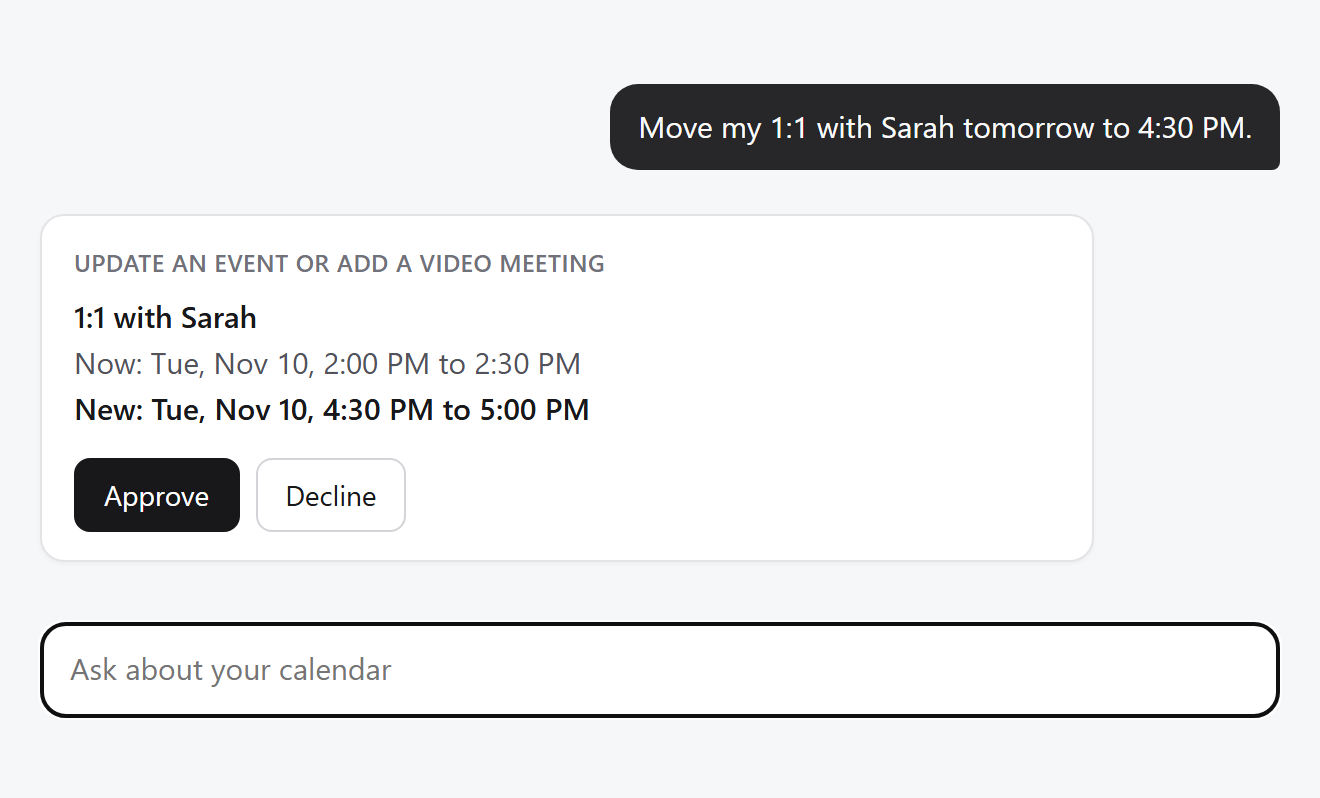
            {event && <div className="approval-when">{moves ? 'Now: ' : ''}{when(event.startsAtLocal, event.endsAtLocal)}</div>}
            {moves && <div className="approval-when approval-new">New: {when(input.startsAt, input.endsAt)}</div>}
            {!event && input.title && <div className="approval-event">{input.title}</div>}
            {!event && input.startsAt && <div className="approval-when">{when(input.startsAt, input.endsAt)}</div>}
            <div className="buttons">
                <button className="primary" onClick={() => onAnswer(true)}>Approve</button>
                <button onClick={() => onAnswer(false)}>Decline</button>
            </div>
        </div>
    )
}
The class names are for your own styles. With some styling, a request to move a meeting looks like this:
Try it
- Run your app with a test key, and with
currentUserIdreturning'sandbox_user_1'. - Ask "What's on my calendar tomorrow?". The assistant reads Avery's calendar without asking.
- Ask "Book a 30 minute meeting tomorrow afternoon when I'm free." A card asks you to approve the new event. Select Approve, and the event is on the calendar.
- Ask it to delete that meeting, and select Decline. The meeting stays, and the assistant says it left it as it was.
To go live, see Go live.